Git Repository Concepts & Essential Commands Every Developer Must Know (2026)
Learn what a Git repository actually is, how the three areas of Git work together, and master the essential commands — init, clone, add, commit, push, pull — with real examples and a complete workflow walkthrough.
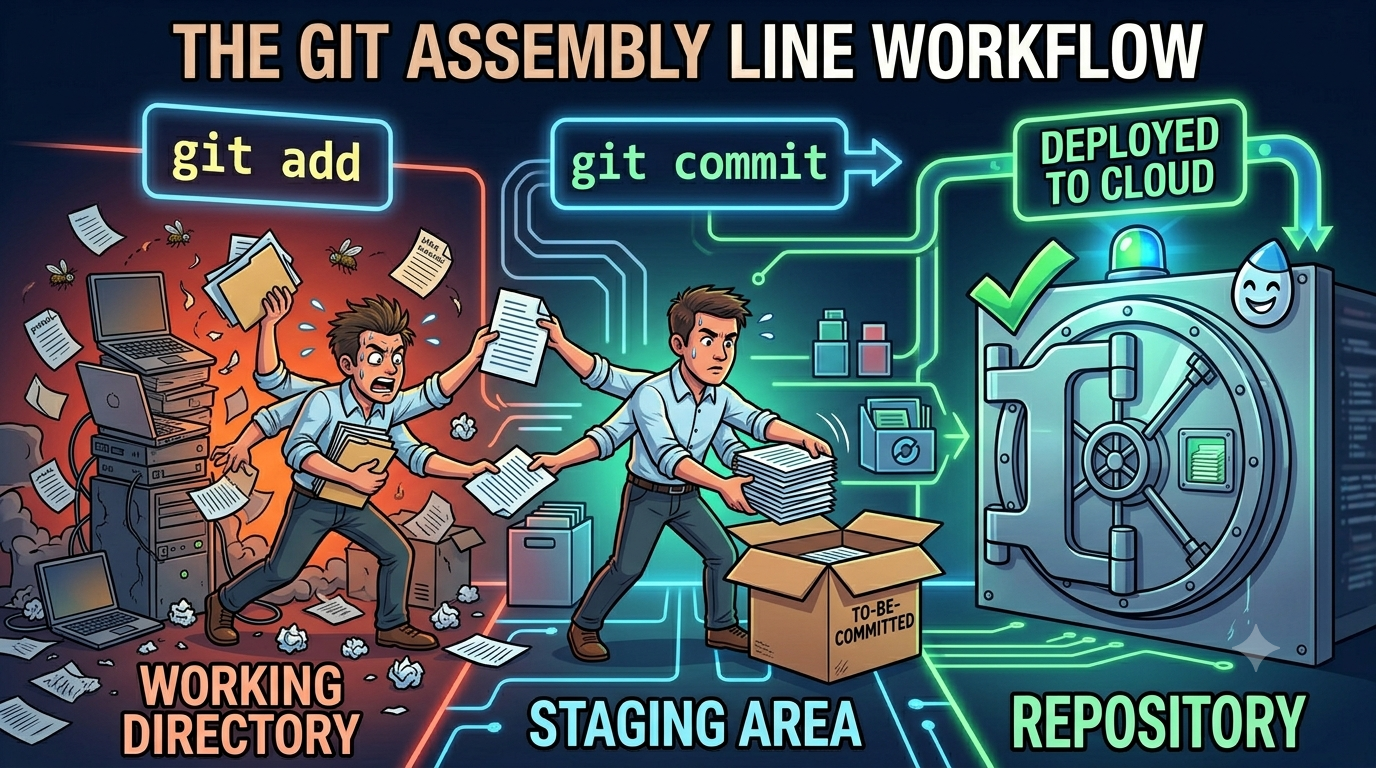
Git Repository Concepts & Essential Commands Every Developer Must Know (2026)
Before You Write a Single Git Command
Most people learn Git by memorizing commands. They run git add, git commit, git push without really understanding what is happening underneath. This works until something goes wrong — and then they have no idea how to fix it.
This blog takes a different approach. Before touching a single command, you will understand what Git is actually doing when you run them. Once that clicks, every command makes complete sense.
What is a Git Repository?
A Git repository is a directory that Git is tracking. It contains your project files plus a hidden folder called .git that stores the entire history of every change ever made to those files.
When you initialize a Git repository in a folder, Git creates that .git folder and starts watching everything inside the directory. Every commit you make gets stored there. The full project history, all branches, all tags — everything lives inside .git.
There are two types of repositories:
Local repository — the repository that exists on your own computer. This is where you do your work — writing code, making commits, creating branches. Everything happens here first.
Remote repository — a copy of the repository hosted on a server, typically on a platform like GitHub, GitLab, or Bitbucket. This is where you push your work so others can access it, and where you pull their work from.
The relationship between local and remote is simple: your local repository is your personal workspace. The remote repository is the shared workspace for the entire team.
The Three Areas of Git — Revisited
Understanding the three areas of Git is the foundation for understanding every command. Here they are with more detail:
1. Working Directory
This is your project folder as you see it on your computer — the actual files you open and edit. When you modify a file, that change exists only in the working directory. Git knows the file changed but has not done anything about it yet.
2. Staging Area (Index)
The staging area is a preparation zone between your working directory and the repository. Before you create a commit, you decide exactly which changes to include by adding them to the staging area. This gives you precise control — you can stage some changes and leave others out of a commit.
Think of it like packing a box before shipping. The working directory is your room where everything is spread out. The staging area is the box you are packing. The repository is the warehouse where sealed boxes are stored permanently.
3. Repository (.git directory)
Once you commit, changes move from the staging area into the repository permanently. Every commit creates a snapshot of the staged files and stores it with a unique ID, a timestamp, the author's name, and a commit message. This history can never be accidentally overwritten.
The Git Workflow — How It All Connects
The standard Git workflow follows this pattern every single time:
- Make changes to files in the working directory
- Stage the changes you want to include in the next commit
- Commit the staged changes to the repository with a descriptive message
- Push the committed changes to the remote repository to share with the team
That is it. Every Git command you will ever use either prepares, executes, or supports one of these four steps.
Essential Git Commands — With Real Examples
Now that the concepts are clear, here are the core Git commands with exactly what each one does.
git init
What it does: Initializes a new Git repository in the current directory. Creates the hidden .git folder that turns a regular folder into a Git repository.
git init
When to use it: When starting a brand new project that is not yet tracked by Git.
What happens: Git creates a .git folder in your current directory. Your project is now a Git repository. Nothing has been committed yet — Git is just watching.
git clone
What it does: Creates a complete local copy of a remote repository on your computer — including all files, all branches, and the entire commit history.
git clone https://github.com/username/repository-name.git
When to use it: When you want to work on an existing project that is hosted on GitHub, GitLab, or any other remote repository.
What happens: Git downloads the entire repository to your computer in a new folder. You immediately have the full project history and can start working.
git status
What it does: Shows the current state of your working directory and staging area — which files have been modified, which are staged, and which are untracked.
git status
When to use it: Before staging or committing anything. This is the first command to run when you want to see what is going on.
What it shows:
- Files you have modified but not yet staged
- Files you have staged and are ready to commit
- New files that Git is not tracking yet
git add
What it does: Moves changes from the working directory to the staging area. Tells Git which changes to include in the next commit.
# Stage a specific file
git add filename.js

# Stage all changes in the current directory
git add .
When to use it: After modifying files, before committing. You choose exactly what goes into each commit.
Important: git add does not save anything permanently. It just prepares changes for the next commit. You can stage and unstage files as many times as you want before committing.
git commit
What it does: Takes everything in the staging area and saves it permanently in the repository as a snapshot. Creates a new commit with a unique ID, timestamp, author info, and your message.
git commit -m "Add user authentication feature"
When to use it: After staging the changes you want to save. Every commit should represent one logical unit of work with a clear, descriptive message.
Good commit message examples:
Fix null pointer exception in login controllerAdd password reset functionalityUpdate README with setup instructions
Bad commit message examples:
fixchangesasdfgh
A good commit history tells the story of how a project evolved. Future you — and your teammates — will thank you for writing clear messages.
git log
What it does: Shows the commit history of the repository — every commit, in reverse chronological order, with the commit ID, author, date, and message.
# Full commit history
git log

# Compact one-line format
git log --oneline
When to use it: When you want to see what changes have been made, who made them, and when.
git push
What it does: Uploads your local commits to the remote repository so others can access them.
git push origin main
When to use it: After committing locally, when you are ready to share your changes with the team or back them up to the remote repository.
What origin main means: origin is the default name Git gives to the remote repository you cloned from. main is the branch you are pushing to.
git pull
What it does: Downloads the latest changes from the remote repository and merges them into your current local branch. It is the combination of two commands — git fetch (download) and git merge (integrate).
git pull origin main
When to use it: Before starting new work, to make sure your local copy is up to date with what the rest of the team has pushed.
Important habit: Always pull before you start working and before you push. This minimizes conflicts.
git diff
What it does: Shows the exact line-by-line differences between the current state of your files and the last commit — or between any two commits or branches.
# See unstaged changes
git diff

# See staged changes
git diff --staged
When to use it: When you want to review exactly what changed before staging or committing.
Putting It All Together — A Complete Workflow Example
Here is what a typical day working with Git looks like:
# 1. Start by pulling the latest changes from the team
git pull origin main

# 2. Make your changes to the code
# ... edit files ...

# 3. Check what changed
git status

# 4. Review the exact changes
git diff

# 5. Stage the changes
git add .

# 6. Commit with a clear message
git commit -m "Add search functionality to product listing page"

# 7. Push to the remote repository
git push origin main
Every day, every feature, every bug fix — this is the pattern. The commands stay the same; only the work changes.
Common Git Command Reference Table
| Command | What it does |
|---|---|
git init | Initialize a new Git repository |
git clone <url> | Copy a remote repository to your computer |
git status | Show the state of the working directory and staging area |
git add <file> | Stage a specific file for the next commit |
git add . | Stage all changes in the current directory |
git commit -m "message" | Save staged changes as a permanent commit |
git log | Show the commit history |
git log --oneline | Show compact commit history |
git push origin main | Upload local commits to the remote repository |
git pull origin main | Download and merge remote changes into local branch |
git diff | Show unstaged changes line by line |
git diff --staged | Show staged changes line by line |
Connecting to GitHub — The Remote Repository
To push your local repository to GitHub for the first time, you need to connect the two. Here is the exact process:
# 1. Create a new repository on GitHub (through the website)

# 2. Connect your local repository to the remote
git remote add origin https://github.com/username/repository-name.git

# 3. Push your code to GitHub for the first time
git push -u origin main
After this initial setup, git push and git pull work without specifying the remote and branch every time.
Interview Q&A
Q1. What is a Git repository?
A Git repository is a directory that Git is tracking. It contains your project files plus a hidden .git folder that stores the entire history of every change ever made to those files — every commit, every branch, every tag. There are two types: a local repository on your own computer where you do your work, and a remote repository hosted on a platform like GitHub that serves as the shared workspace for the entire team.
Q2. What is the difference between git add and git commit?
git add moves changes from the working directory to the staging area — it tells Git which changes to prepare for the next commit but does not save anything permanently. git commit takes everything in the staging area and saves it permanently in the repository as a snapshot with a unique ID, timestamp, author information, and a message. The staging area exists specifically to give you control over exactly what goes into each commit — you can add and remove files from the staging area as many times as you want before committing.
Q3. What is the difference between git push and git pull?
git push uploads your local commits to the remote repository so others can access your work. git pull downloads the latest commits from the remote repository and merges them into your current local branch so you have the team's latest work. Push sends your changes out; pull brings other people's changes in.
Q4. What is the staging area in Git?
The staging area, also called the index, is a preparation zone between the working directory and the repository. Before creating a commit, you use git add to move changes into the staging area, choosing exactly which changes to include. This gives you precise control over your commits — you can stage some files and leave others unstaged, allowing you to create focused, logical commits rather than one large commit containing unrelated changes.
Q5. What does git clone do?
git clone creates a complete local copy of a remote repository on your computer, including all files, all branches, and the entire commit history. It also automatically sets up the connection to the remote repository, so you can immediately run git push and git pull without any additional configuration. It is the standard way to start working on an existing project hosted on GitHub or any other remote Git platform.
Q6. What is the difference between a local and a remote repository?
A local repository is the copy of the project that exists on your own computer. It is where you do all your work — writing code, making commits, creating branches. Changes in a local repository are only visible to you until you push them. A remote repository is a copy of the repository hosted on a server, typically on GitHub, GitLab, or Bitbucket. It is the shared workspace for the entire team — developers push their local commits to the remote so others can pull and access them.
Zero to DevOps Series — Blog 7